Checklist: Verifying Die-Cutter Registration Before Production
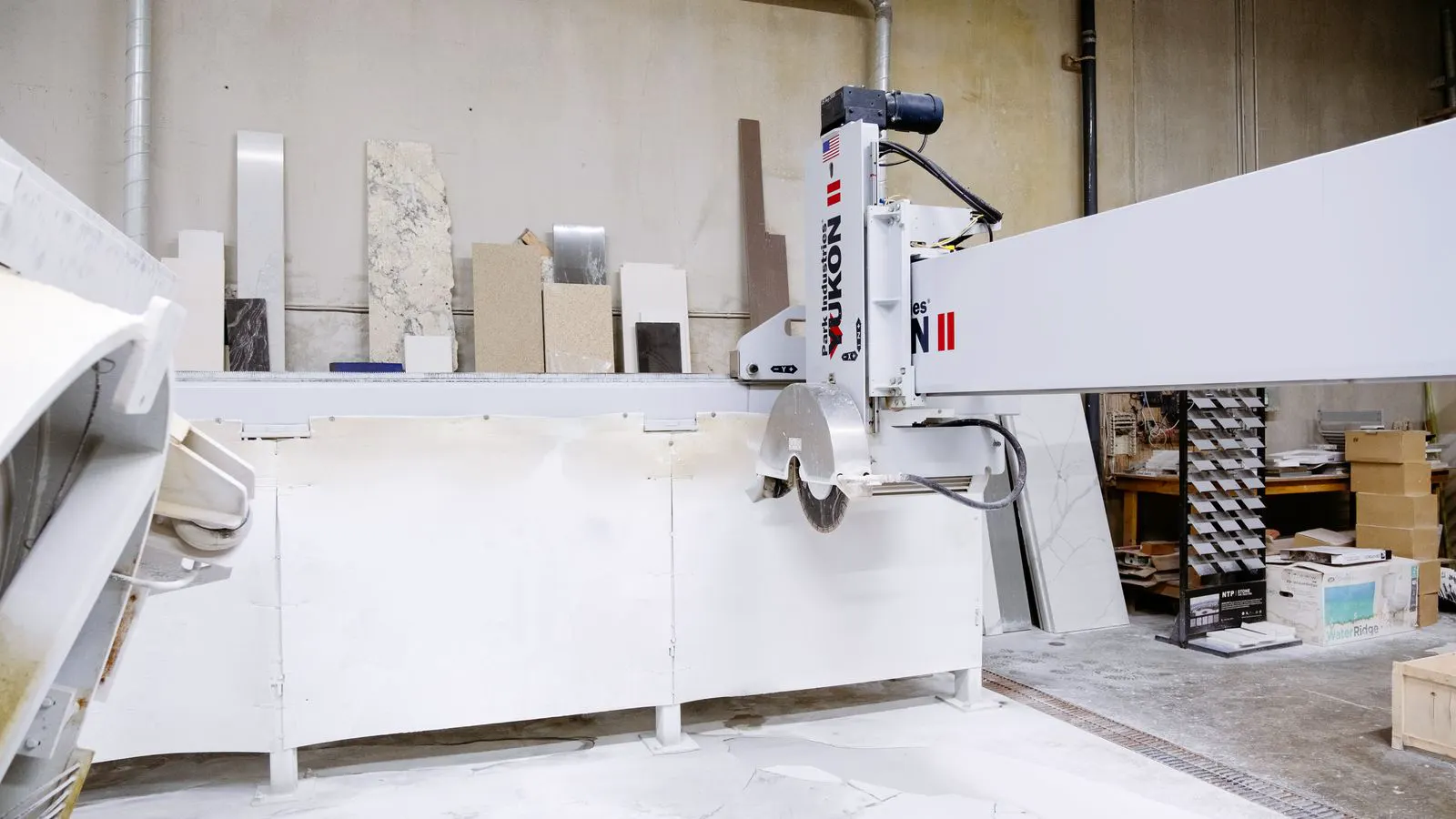
This checklist helps you verify die cutter registration and cutting alignment before a full run. It covers substrate checks, die condition, machine settings, and inspection points to prevent post press quality defects.
- Verify die cutter registration with a test sheet before committing to the full substrate stock.
- Inspect the cutting die for wear, burrs, and debris that can cause cutting alignment errors.
- Check the substrate feed path for slippage, warping, and consistent register marks.
- Measure critical dimensions on multiple corners to catch misregistration before it becomes a customer complaint.
- Document the setup and keep a sample for future production reference.
Why Die Cutter Registration Fails Before Production Starts
A die cutter registration error often appears on the first full run, not during setup. The problem is usually subtle. A few millimeters of shift, a worn cutting edge, or a substrate that slides in the feed tray can create a pattern of defects that is expensive to fix after the fact.
The goal of this checklist is simple. Catch the issue while the cost is low. You want to verify that the cutting tool meets the printed substrate exactly where the design intends. This requires a structured check of the machine, the tooling, the material, and the finished test piece.
1. Check the Substrate and Stock Preparation
Before the machine touches the paper, the substrate must be stable. Warped sheets, uneven stacking, and static cling all affect how the paper sits on the bed.
- Ensure the substrate is within the flatness tolerances of the machine.
- Remove any packaging tape or dust from the surface.
- Confirm the substrate thickness and weight match the die cutter specifications.
- Check that the corners are square. A distorted sheet will never cut cleanly.
Red flags:
- The substrate bends noticeably when lifted at one corner.
- There is visible static on the top layer, causing sheets to stick together.
- The stack is not uniform, with gaps or bumps at the edges.
If the substrate is not prepared correctly, no amount of machine adjustment will fix the final cut. The paper will shift as it feeds into the die. This shifts the cutting alignment relative to the printed image.
2. Inspect the Die and Cutting Tool
The die is the most common source of registration errors. Even a small amount of wear changes the cutting path. A burr on the edge creates a weak cut that can tear the substrate instead of slicing it.
- Remove the die from the machine and inspect the cutting edge under a lamp.
- Look for nicks, chips, or rounded corners on the steel.
- Check the backing plate for dents or debris.
- Verify that the die is the correct version for the current job.
Red flags:
- The cutting edge looks dull or shiny in a way that differs from the rest of the tool.
- There is paper dust packed into the die slots.
- The die frame is bent or loose at the mounting screws.
A worn die may still cut a straight line, but it will not hold the tolerance. If the die is the issue, replace it before the production run. Do not try to compensate with machine settings.
3. Verify Machine Alignment and Feed Path
The machine must hold the substrate in a fixed position relative to the die. If the feed path is not aligned, the paper will slide as it approaches the cutting point.
- Check that the feed rollers are clean and not worn.
- Ensure the side guides and front stop are set to the correct dimensions.
- Run a test sheet through the feed path without cutting.
- Mark the sheet with a pencil and verify the mark stays in the same position on each pass.
Red flags:
- The side guides are loose and can be pushed by hand.
- The feed rollers leave marks on the substrate surface.
- The test sheet shifts slightly from one pass to the next.
The feed path is the backbone of die cutter registration. If the paper does not stop in the exact same spot every time, the cut will not align with the printed art.
4. Set the Die Position and Register Mark
Once the substrate is stable and the die is clean, you set the die position. This is where the cutting alignment is defined.
- Place the substrate on the bed.
- Align the printed registration mark with the die.
- Secure the substrate if the machine allows, or use the feed path to hold it.
- Run a single cut on a test sheet.
Red flags:
- The die is not parallel to the feed direction.
- The registration mark is obscured by the die frame.
- The test sheet cuts, but the cut line is not exactly on the mark.
Do not trust a single cut. Run three or four test sheets. The first cut may be off due to machine settling. The next few cuts should be consistent. If they are not, the die cutter registration is not stable.
5. Measure the Cut Against the Design
Visual inspection is not enough. You need to measure the cut to verify the cutting alignment against the printed substrate.
- Use a steel ruler or digital caliper to measure from the cut edge to the printed registration mark.
- Check all four corners of the sheet.
- Measure the distance between cut lines if the design has internal cuts.
- Compare the measurements to the approved spec sheet.
Red flags:
- The cut is consistently off by the same amount in one direction.
- The cut shifts from corner to corner.
- The internal cuts do not match the external cut.
A consistent offset means the die is set wrong. A shifting cut means the substrate is moving. Both require correction before production.
6. Check the Post Press Quality of the Cut
The cut itself must be clean. A properly aligned cut can still be defective if the edge is rough or the substrate is torn.
- Run your finger along the cut edge. It should feel smooth.
- Look for frayed fibers or torn paper.
- Check the corners for sharp, clean cuts.
- Inspect the back of the sheet for any damage.
Red flags:
- The cut edge looks fuzzy or torn.
- The corners are rounded instead of sharp.
- There is visible stress on the substrate near the cut.
This is a post press quality issue. Even if the die cutter registration is perfect, a bad cut will make the product look defective. The cut must be clean and sharp to meet customer expectations.
7. Document the Setup and Keep a Sample
Before starting the full run, document the settings and keep a sample. This protects you if a quality issue arises later.
- Record the die version and part number.
- Note the substrate type and weight.
- Record the machine settings and register marks used.
- Keep a test sheet in the job file.
Red flags:
- The setup sheet is missing or incomplete.
- The sample is not labeled with the job number.
- The machine settings are not written down.
If a customer complains about cutting alignment three weeks later, you will need to know exactly how the machine was set up. The sample and documentation give you that proof.
Quick Reference Table
| Check Item | What to Look For | Action If Failed |
|---|---|---|
| Substrate Flatness | Warping or bending | Reject or flatten stock |
| Die Condition | Nicks, burrs, dust | Clean or replace die |
| Feed Path | Slippage or shifting | Adjust guides and rollers |
| Die Position | Misalignment with mark | Re-set die position |
| Cut Measurement | Offset from spec | Adjust die or substrate feed |
| Cut Quality | Torn or fuzzy edges | Replace die or check substrate |
Common Mistakes That Break Die Cutter Registration
- Assuming the first test cut is representative. Always run multiple sheets.
- Ignoring substrate static. Static causes sheets to stick and shift.
- Using the wrong die. A similar die from a previous job can have different tolerances.
- Skipping the back of the sheet. The cut must be clean on both sides.
- Not measuring. The eye is not precise enough for cutting alignment.
When to Stop and Call for Help
If the die cutter registration will not hold after checking the substrate, die, and feed path, stop. Do not run more sheets. Call a technician or adjust the machine according to the manufacturer instructions. Running a defective batch wastes substrate and creates a larger quality issue than fixing the setup.
Frequently asked questions
How many test sheets should I run to verify die cutter registration?
Run at least three to five sheets. The first cut can be off due to machine settling, and you need to confirm the cutting alignment is consistent across multiple passes.
What is the first thing to check if the cut is not aligned with the print?
Check the substrate first. Warped or static-laden paper will shift in the feed path, causing the cut to miss the registration mark.
Can a worn die cause die cutter registration errors?
Yes. A worn die changes the cutting path and can create a consistent offset. It can also cause the substrate to tear instead of cut cleanly.
Is visual inspection enough to verify cutting alignment?
No. You must measure the cut against the design. The eye cannot detect small offsets that will be visible to the customer.
What should I do if the cut is clean but not aligned?
Stop production. Re-check the die position and the feed path. Adjust the die or the substrate feed until the cut matches the registration mark.