How to Configure Inkjet Media Thickness Settings
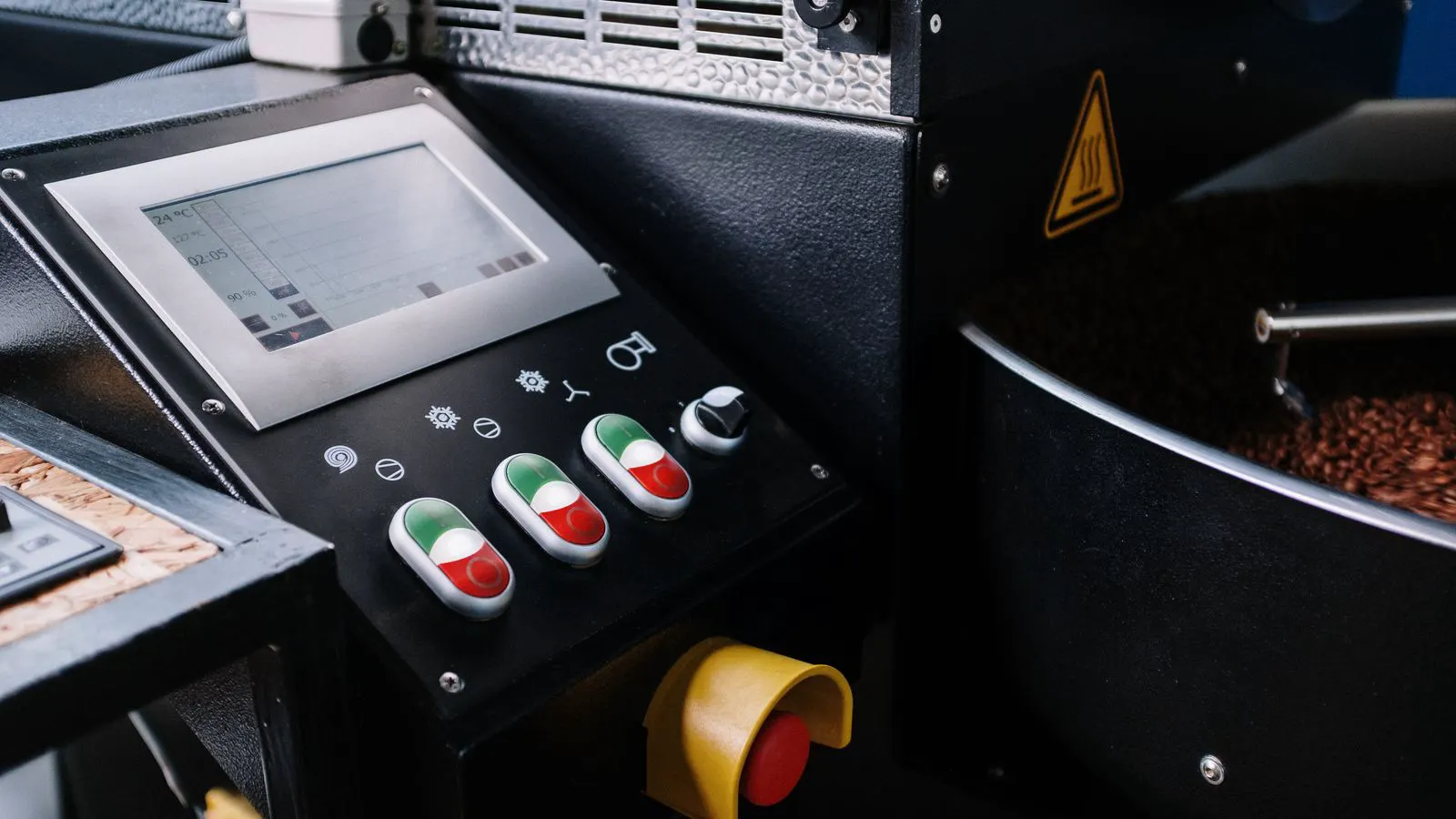
Configure inkjet media settings by verifying paper thickness, adjusting feed gaps, and calibrating feed pressure. This guide covers prerequisites, step-by-step setup, and verification to prevent jams and ensure consistent print quality.
- Match feed and delivery gaps to paper thickness to prevent jams.
- Adjust feed pressure based on substrate weight and stiffness.
- Run short test sheets to verify alignment and registration before full runs.
- Document settings for each stock type to speed up changeovers.
- Check for wear on feed rollers and guide plates regularly.
Why Paper Thickness Matters in Inkjet Press Operation
Inkjet presses handle a broader variety of substrates than traditional offset or toner digital presses. Paper can range from lightweight 70 gsm brochure stock to heavy 400 gsm cardstock. Cardboard and flexible materials behave differently than coated paper. If the machine feed system is not configured for the actual thickness, the sheet may not advance correctly. This causes jams, misregistration, and inconsistent ink drying.
The media thickness setting tells the press how much space to leave between the feed rollers and the guide plates. It also influences the feed pressure and the timing of the sheet pickup. When the setting is too tight for a thick sheet, the rollers cannot grip properly. When it is too loose, the sheet can slip or curl during the print cycle.
Most modern inkjet presses allow you to adjust these parameters through the control panel or a connected software interface. Some machines use preloaded profiles for common paper weights. You still need to verify the settings for your specific stock. Different paper stocks have different surface coatings, stiffness, and curl behavior.
Before You Change Settings
Before touching any press parameters, confirm the actual paper thickness. Do not rely solely on the package specification. Paper thickness can vary between batches. Measure a sample with a micrometer or thickness gauge. Record the measurement in millimeters or microns.
Check the paper condition. Look for curled edges, creases, or static buildup. Static can cause sheets to stick together. Curl can make the leading edge lift during the feed. If the paper is damaged or out of specification, the press settings cannot compensate for the problem.
Review the previous run. If you are changing from a thin stock to a thick one, the press needs a longer stabilization period. The feed rollers may need to adjust to a different pressure. The delivery stack may need more space.
Gather the documentation. The press manual lists the maximum thickness for the feed path and the delivery stack. Some presses have separate limits for the print area and the trim area. Know these limits before you proceed.
Step-by-Step Configuration of Inkjet Media Settings
Follow these steps in order. Do not skip the verification phase. Each step builds on the previous one.
-
Set the paper thickness in the control panel. Enter the measured thickness into the media settings menu. Most presses use millimeters or points. If the machine uses a dropdown menu, select the closest value. If it uses a numeric field, enter the exact measurement. The reason is that the feed gap calculates the roller spacing from this value. If the value is wrong, the rollers will not align with the paper.
-
Adjust the feed gap. The feed gap is the distance between the top of the feed roller and the guide plate. Set it to the thickness plus a small allowance, usually 0.1 to 0.2 mm. The reason is that the paper needs room to flex as it passes through. If the gap is too tight, the paper compresses. If it is too loose, the paper slips.
-
Configure the delivery stack height. The delivery stack must accommodate the full run without the last sheet pushing the first sheet out of alignment. Set the stack height based on the number of sheets and the thickness of each. The reason is that a full stack changes the pressure on the bottom sheets. If the stack is too low, sheets can curl upward.
-
Set the feed pressure. Feed pressure determines how hard the rollers grip the paper. For thin paper, use low pressure to avoid marring the surface. For thick cardstock, use higher pressure to maintain traction. The reason is that thin paper can be damaged by excessive pressure. Thick paper needs more grip to prevent slippage during high-speed operation.
-
Adjust the pickup roller force. The pickup roller pulls the sheet from the stack. Set the force so the top sheet lifts without lifting the second sheet. Test this by hand first. The reason is that double feeding is a common cause of jams. If the pickup force is too high, multiple sheets may enter the feed path at once.
-
Run a registration test. Print a registration sheet with solid colors and fine lines. Check the registration on all four corners. Check the ink coverage on the edges. The reason is that a small error in the feed gap can cause the print to shift by a fraction of a millimeter. This is visible on fine lines and halftone dots.
-
Monitor the first 50 sheets. After the registration test, run 50 sheets and inspect each one. Look for jams, misfeeds, and print defects. Check the paper for marks from the rollers. The reason is that the first sheets often reveal problems that do not appear later. The feed system may need a few cycles to stabilize.
Common Mistakes That Cause Jams
One of the most common mistakes is using a generic paper thickness setting. Many operators select a default value without measuring the actual stock. This is especially risky when the stock is outside the standard range. A 150 gsm paper may feel thin, but its actual thickness can vary by 0.05 mm depending on the coating.
Another mistake is ignoring the delivery stack. Operators focus on the feed system but forget that the delivery stack also needs adjustment. If the stack is too low, the pressure on the bottom sheets increases. This can cause the top sheet to lift unevenly as it lands on the stack.
A third mistake is skipping the registration test. Some operators assume that if the press runs without jams, the settings are correct. This is not true. A slightly misaligned feed can produce a print that looks acceptable at normal viewing distance but fails on close inspection. Fine lines may appear broken. Halftone dots may show banding.
A fourth mistake is not checking the rollers for wear. Feed rollers lose their rubber compound over time. The surface becomes glazed. The grip decreases. This causes slips and jams, even with correct settings. If you have changed settings and still experience jams, inspect the rollers.
Verifying Your Settings
After completing the configuration steps, run a full verification. Print a test sheet with the most demanding elements. Use fine lines, small text, and halftone dots. Check the registration on all four corners. Check the ink density on the edges.
Measure the feed accuracy. Place the sheet on a flat surface and measure the distance from the trim edge to a fixed point on the print. Compare this to the previous measurement. If the distance changes by more than 0.2 mm, the feed is inconsistent.
Check the paper for physical damage. Look for marks from the rollers. Look for scuffs on the edges. If you see marks, the feed gap is too tight or the rollers are worn.
Document the settings. Record the paper thickness, feed gap, feed pressure, pickup force, and delivery stack height. Store this document with the job file. This saves time on future runs. If the same stock returns, you can load the settings quickly.
If the verification fails, return to step 1. Do not make multiple changes at once. Change one parameter, run a short test, and observe the result. This isolates the cause of the problem.
Maintaining Consistent Inkjet Media Settings
Maintaining consistent settings is a daily task. At the start of each shift, check the paper condition. Measure the thickness. Verify the feed gap. Run a short test.
Keep the rollers clean. Dust and ink residue reduce grip. Use the recommended cleaning method. Do not use solvents that damage the rubber.
Check the guide plates for wear. The edges should be smooth. A worn edge can score the paper. Replace the plates when you see visible wear.
Review the press logs. Some presses record feed errors and jam events. Review these logs weekly. If you see a pattern, investigate the cause. A recurring jam at a specific point in the feed path suggests a mechanical issue.
Train your operators. Make sure everyone knows the correct procedure. Use the same documentation. Use the same test sheets. Consistency reduces variability.
When to Call a Technician
Some problems are not solvable with operator settings. If you have adjusted the settings and still experience jams, the issue may be mechanical. Check for worn feed rollers. Check for a misaligned pickup assembly. Check for a damaged guide plate.
If the feed rollers are worn, replace them. Do not try to compensate with settings. A worn roller cannot grip properly, regardless of the pressure.
If the pickup assembly is misaligned, a technician must adjust it. The alignment affects how the sheet enters the feed path. A misalignment causes repeated jams.
If the guide plates are damaged, replace them. A damaged plate creates a high spot. The paper cannot pass over the high spot without jamming.
If the problem persists after mechanical inspection, contact the manufacturer. Some presses have electronic feed sensors that can drift. A technician can calibrate the sensors.
Related Topics
For a broader view of inkjet press selection, see the Buyers Guide on selecting inkjet presses for variable data. If you encounter banding on your sheetfed press, review the troubleshooting guide on fixing banding. For color consistency, refer to the guide on calibrating digital press color. For future substrates, explore the outlook on inkjet on flexible substrates. For understanding the heating process in toner presses, see the explainer on how toner fusers work. For budget planning, review the cost analysis of digital press consumables.
Frequently asked questions
Can I use the same settings for different paper weights?
No. Each paper weight requires different feed gaps and pressures. Use the measured thickness to adjust the settings for each stock.
What is the safest way to adjust feed pressure?
Start with the lowest pressure that maintains grip. Increase in small increments. Test after each change to avoid damaging the paper.
How often should I check the feed rollers?
Check the feed rollers at the start of each shift. Look for glazing or wear. Replace them when the grip decreases.
What should I do if the paper still jams after changing settings?
Inspect the rollers and guide plates for wear. Check the pickup assembly for alignment. If the problem persists, contact a technician.
Should I measure the paper thickness every run?
Yes. Measure the thickness for each batch. Paper thickness can vary between batches. Do not rely on the package specification alone.